- Find Resource-Hungry Programs
Your PC is running slow because something is using up those resources. If it’s suddenly running slower, a runaway process might be using 99% of your CPU resources, for example. Or, an application might be experiencing a memory leak and using a large amount of memory, causing your PC to swap to disk. Alternately, an application might be using the disk a lot, causing other applications to slow down when they need to load data from or save it to the disk.
To find out, open the Task Manager. You can right-click your taskbar and select the “Task Manager” option or press Ctrl+Shift+Escape to open it. On Windows 8, 8.1, and 10, the new Task Manager provides an upgraded interface that color-codes applications using a lot of resources. Click the “CPU,” “Memory,” and “Disk” headers to sort the list by the applications using the most resources. If any application is using too much resources, you might want to close it normally — if you can’t, select it here and click “End Task” to force it to close.
2. Close System Tray Programs
Many applications tend to run in the system tray, or notification area. These applications often launch at startup and stay running in the background but remain hidden behind the up arrow icon at the bottom-right corner of your screen. Click the up arrow icon near the system tray, right-click any applications you don’t need running in the background, and close them to free up resources.

3.Disable Startup Programs
Better yet, prevent those applications from launching at startup to save memory and CPU cycles, as well as speed up the login process.
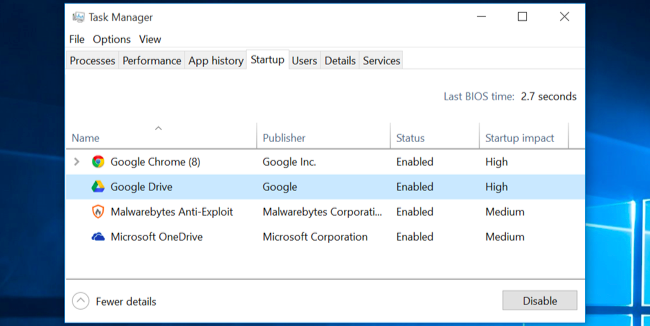
On Windows 8, 8.1, and 10, there’s now a startup manager in the Task Manager you can use to manage your startup programs. Right-click the taskbar and select “Task Manager” or press Ctrl+Shift+Escape to launch it. Click over to the Startup tab and disable startup applications you don’t need. Windows will helpfully tell you which applications slow down your startup process the most.
4. Free Up Disk Space
If your hard drive is almost completely full, your computer may run noticeably slower. You want to leave your computer some room to work on your hard drive. Follow our guide to freeing up space on your Windows PC to free up room. You don’t need any third-party software — just running the Disk Cleanup tool included in Windows can help quite a bit.

5. Defragment Your Hard Disk
Defragmenting your hard disk actually shouldn’t be necessary on modern versions of Windows. It’ll automatically defragment mechanical hard drives in the background. Solid-state drives don’t really need traditional defragmentation, although modern versions of Windows will “optimize” them — and that’s fine.
You shouldn’t worry about defragmentation most of the time. However, if you do have a mechanical hard drive and you’ve just put a lot of files on the drive — for example, copying a huge database or gigabytes of PC game files — those files might be defragmented because Windows hasn’t gotten around to defragmenting them yet. In this situation, you might want to open the disk defragmenter tool and perform a scan to see if you need to run a manual defrag program.

This Information

沒有留言:
張貼留言